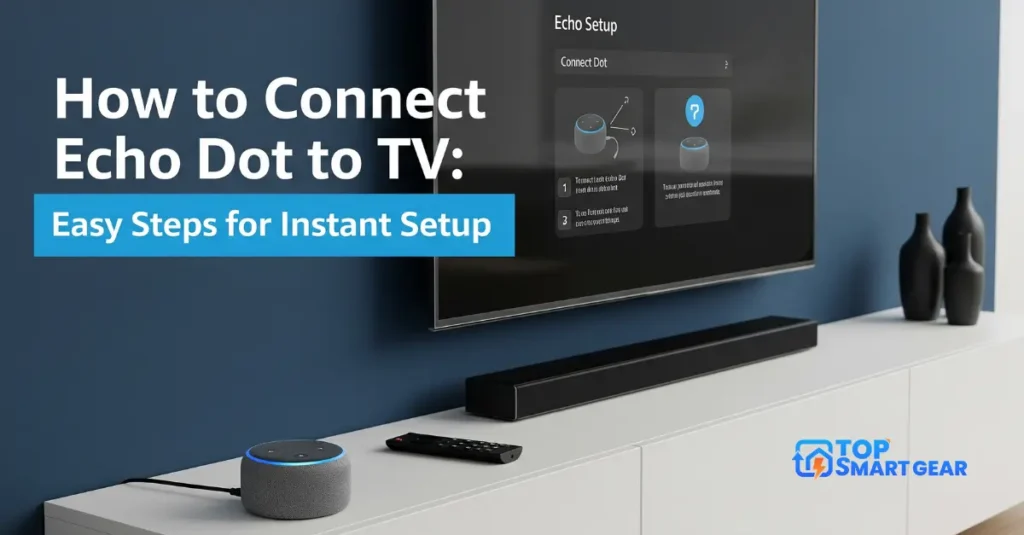
Want to make your TV smarter and easier to control? Learn how to connect Echo Dot to TV and transform the way you watch shows and movies with hands-free voice control and better audio.
Imagine using just your voice to play, pause, or switch channels without grabbing the remote. If you’ve ever wondered how to set this up, you’re in the right place. This guide will walk you through simple steps to connect your Echo Dot to your TV quickly and effortlessly.
Keep reading, and you’ll be enjoying hands-free TV time in no time!
Credit: www.youtube.com
Echo Dot And Tv Compatibility
Connecting your Echo Dot to a TV can enhance your home entertainment. It lets you use voice commands to control sound and video. Not all TVs work the same with Echo Dot. Knowing which models are compatible helps avoid problems. Also, some accessories may be needed for a smooth connection.
Supported Tv Models
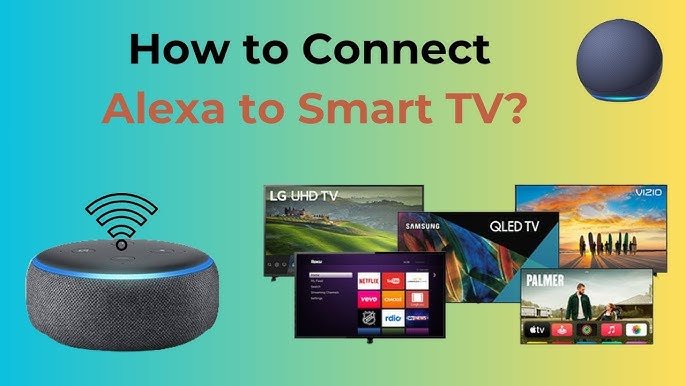
Echo Dot works best with smart TVs. Brands like Samsung, LG, and Sony often support voice controls. Most Fire TV devices are also compatible. Some older TVs need extra devices for connection. Check your TV manual for Alexa support details. Non-smart TVs usually require additional hardware to connect.
Required Accessories
Some TVs need extra accessories to link with Echo Dot. An Amazon Fire TV Stick is a common choice. It adds Alexa control to many TVs. Bluetooth speakers or adapters may help with sound. A compatible HDMI cable is essential for some setups. These tools improve your Echo Dot and TV experience.
Preparing Your Devices
Before learning how to connect Echo Dot to TV, prepare both devices properly. This helps ensure a smooth setup and better performance. Follow a few simple steps to get your Echo Dot and TV ready before connecting.
Powering Up Echo Dot
Plug your Echo Dot into a power outlet using the provided adapter. Wait for the light ring to turn blue, then orange. The orange light means the device is in setup mode. If it does not appear, press and hold the action button for a few seconds. This step is essential for the Echo Dot to be ready for connection.
Turning On The Tv
Switch on your TV using the remote or power button. Select the correct input source that matches your TV’s connection with the Echo Dot. The input might be HDMI or another port. Make sure the TV screen is active. This allows the Echo Dot to communicate with the TV smoothly.
Connecting Via Bluetooth
Connecting your Echo Dot to your TV using Bluetooth is a simple way to play audio wirelessly. This method lets you enjoy music, podcasts, or Alexa responses through your TV speakers. The process requires enabling Bluetooth on your TV and pairing it with your Echo Dot device.
Enabling Bluetooth On Tv
Start by turning on your TV and opening the settings menu. Find the Bluetooth option, usually under “Connections” or “Sound.” Switch Bluetooth to “On” or “Discoverable” mode. This step allows your TV to search for nearby devices like the Echo Dot. Keep the Bluetooth menu open until pairing is complete.
Pairing Echo Dot With Tv
Next, open the Alexa app on your smartphone or tablet. Tap on “Devices” and select your Echo Dot from the list. Choose “Bluetooth Devices” and tap “Pair a New Device.” Your Echo Dot will search for available Bluetooth devices. Select your TV from the list to connect. Wait for the confirmation that pairing is successful. Now, your Echo Dot audio will play through your TV speakers.
Using An Audio Cable
Using an audio cable is a simple way when learning how to connect Echo Dot to TV. This method allows you to play TV sound through your Echo Dot speaker and works best when both devices are close together. You can enjoy clearer audio while still using Alexa voice commands to control the sound.
Choosing The Right Cable
Selecting the correct audio cable is key. Most Echo Dot models use a 3.5mm audio jack. Your TV must have an audio output port. This could be a headphone jack or RCA audio out. A 3.5mm-to-3.5 mm cable works if both devices have headphone jacks. If your TV has RCA outputs, choose a 3.5mm-to-RCA cable. Check your TV’s ports carefully before buying.
Connecting Echo Dot To Tv Audio Out
First, plug one end of the cable into your TV’s audio out port. Connect the other end to the Echo Dot’s 3.5mm audio input. Turn on your TV and Echo Dot. Set your TV audio output to external speakers if needed. The Echo Dot will now play your TV’s sound. Adjust the volume on both devices for the best experience.
Configuring Alexa For Tv Control
Configuring Alexa for TV control makes your Echo Dot more useful. It lets you control your TV with simple voice commands. This adds comfort and ease to your daily routine.
Setting up Alexa properly ensures smooth communication between your Echo Dot and TV. It allows you to access TV functions without using a remote.
Setting Up Alexa Skills
Start by opening the Alexa app on your phone. Go to the Skills & Games section. Search for your TV brand or model.
Enable the right skill for your TV. Follow the on-screen instructions to link your TV account. This step connects Alexa to your TV system.
After linking, test the skill by asking Alexa to find your TV. Make sure the TV responds correctly. This confirms the skill is active and working.
Using Voice Commands
Use simple commands to control your TV. Say “Alexa, turn on the TV” to power it up. Commands like “Alexa, change channel to 5” work well.
You can also say “Alexa, increase volume” or “Alexa, mute the TV.” Speak clearly and close to your Echo Dot. This helps Alexa understand you better.
Try commands for apps too, such as “Alexa, open Netflix.” These voice controls make watching TV easier and faster.
Troubleshooting Common Issues
Connecting your Echo Dot to your TV should be simple, but sometimes issues can occur. This guide on how to connect Echo Dot to TV also helps you troubleshoot common problems to quickly fix connection or sound issues and get everything working smoothly.
Try these easy steps to get your Echo Dot and TV working together smoothly again.
Connection Problems
Check if your Echo Dot and TV are close enough for a strong signal. Make sure Bluetooth is on for both devices. Restart your Echo Dot and TV to refresh connections. Remove any old Bluetooth devices that might cause interference. Update your Echo Dot and TV software to the latest version. If the problem persists, try forgetting the device on your Echo Dot and pairing it again.
Audio Sync Issues
Audio delay can spoil your watching experience. Restart your Echo Dot and TV to clear sound lag. Check your TV’s audio settings for any delay options. Lower the volume on your TV and increase it on your Echo Dot. This can help match the sound timing. Use a wired connection if Bluetooth keeps causing delays. Keep your devices close to reduce lag from wireless signals.

Frequently Asked Questions
How Do I Connect the Echo Dot To My Tv?
To connect Echo Dot to your TV, use Bluetooth or an audio cable. Enable pairing mode on Echo Dot. On your TV, find Bluetooth settings and select Echo Dot. For a wired connection, use a 3. 5mm audio cable from the TV to the Echo Dot.
Can the Echo Dot Control Tv With Voice Commands?
Yes, the Echo Dot can control your TV using voice commands. Ensure your TV supports Alexa integration or connect via a compatible smart hub. Use commands like “Alexa, turn on the TV” or “Alexa, change the channel” for hands-free control.
Which TVs are compatible with the Echo Dot?
Most smart TVs with Bluetooth or Alexa support work with Echo Dot. Popular brands like Samsung, LG, Sony, and Fire TV devices are compatible. Check your TV’s manual for Alexa or Bluetooth features before connecting with Echo Dot.
How To Fix an Echo Dot Not Connecting to TV?
Restart both Echo Dot and your TV. Ensure Bluetooth is enabled and devices are in pairing mode. Move devices closer to avoid interference. Update software on both devices. If issues persist, reset Echo Dot or consult the user manual.
Conclusion
Connecting your Echo Dot to your TV is simple and very useful. This guide on how to connect Echo Dot to TV helps you control your TV using voice commands. Follow the steps carefully to avoid connection issues. Make sure both devices are nearby and connected to the same Wi-Fi network. If you notice weak sound or pairing problems, adjusting the audio or Bluetooth settings can help.
Enjoy hands-free control for music, shows, and more. This small setup can make watching TV easier and fun. Keep your Echo Dot updated to get the best experience. Now, you can enjoy a smarter home with easy TV control.