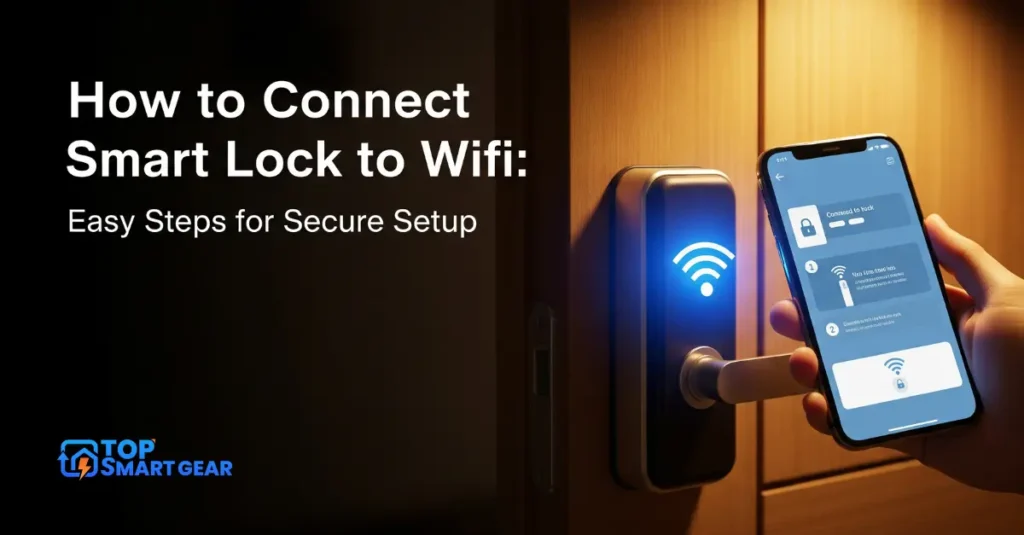
Imagine unlocking your door without fumbling for keys. When you learn how to connect smart lock to Wifi, you gain total control right from your phone and never have to worry if you remembered to lock up.
But if you’re not sure how to get started, don’t worry—you’re in the right place. This guide will walk you through every step, so you can enjoy the convenience and security of a smart lock that’s always connected. Ready to make your home smarter and safer?
Let’s dive in.
Choosing The Right Smart Lock
Choosing the right smart lock is important for a smooth WiFi connection. The right lock improves home security and adds convenience. It should fit your needs and work well with your home network. Focus on features that matter most to you. This helps avoid frustration during setup and daily use.
Key Features To Consider
Look for smart locks with strong security features. Check if the lock supports multiple access methods like codes, keys, or apps. Battery life matters. A long-lasting battery reduces maintenance. Easy installation saves time and effort. Some locks come with extra features like auto-lock or guest access. Think about these before you buy.
Compatibility With Wifi Networks
Check if the smart lock works with your WiFi frequency. Most locks use 2.4 GHz networks, not 5 GHz. Confirm your router supports this frequency. The lock should connect directly to WiFi or via a hub. Also, consider the WiFi range. Choose a lock that stays connected even from a distance. This prevents connection issues and keeps your lock responsive.
Preparing Your Smart Lock
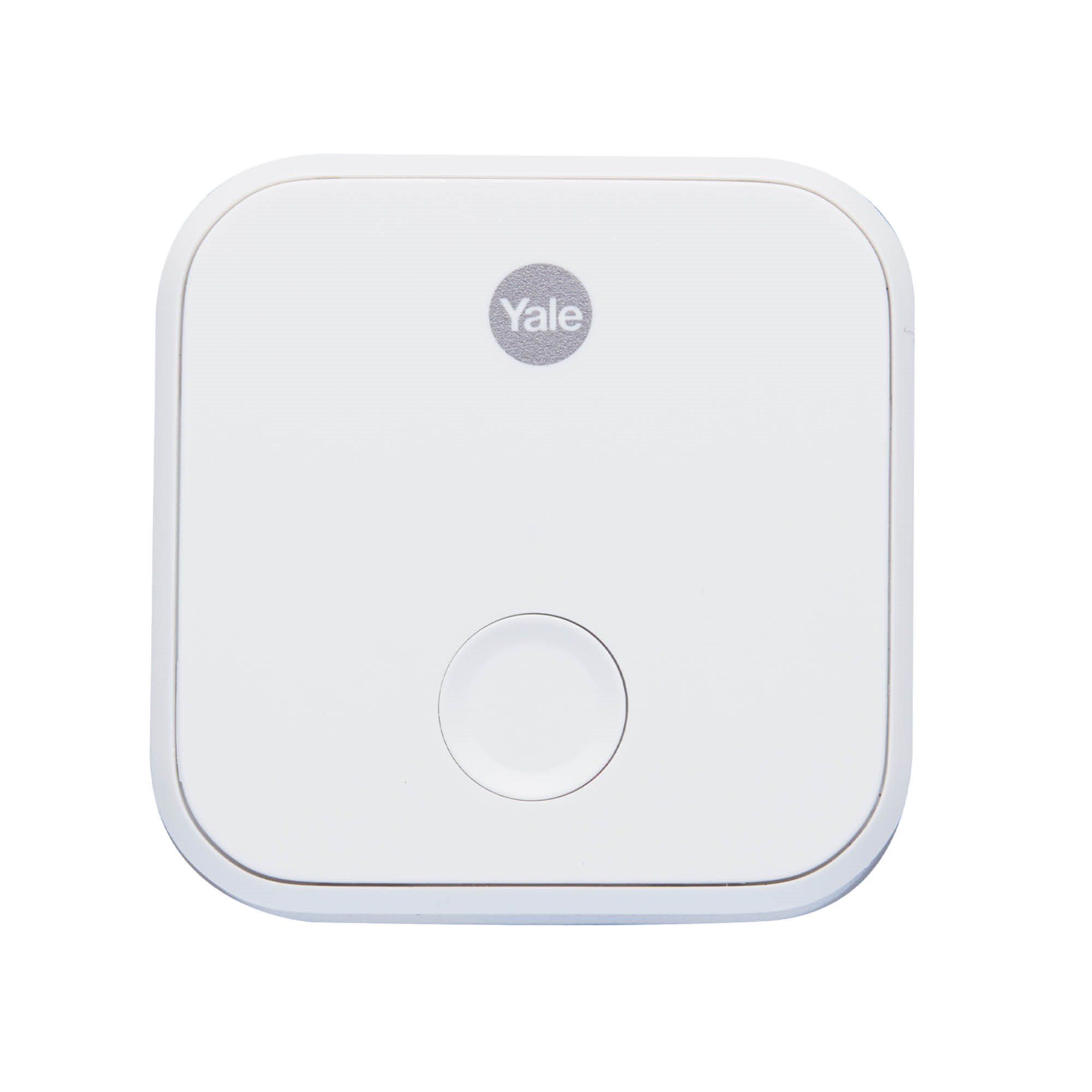
Preparing your smart lock before connecting it to WiFi is important. It makes the setup process smooth and fast. A few simple checks can save time and avoid problems later. Follow these steps to get your smart lock ready for WiFi connection.
Checking Battery And Hardware
Before learning how to connect smart lock to Wifi, start by checking the battery level. A low battery can cause connection issues, so replace old batteries with new ones to ensure a steady power supply. Also, inspect the hardware for visible damage and ensure the lock fits well on your door; a proper hardware setup is the foundation for a successful Wi-Fi connection.
Resetting To Factory Settings
Reset your smart lock to factory settings before connecting it to WiFi. This clears old data and previous connections. Find the reset button or follow the manual’s instructions. Press and hold the button until the lock resets. Factory reset prepares the lock for a fresh start with your network.
Connecting Smart Lock To Wifi
Connecting a smart lock to WiFi allows remote control and monitoring from anywhere. It ensures the lock remains up to date and responsive. The process is straightforward with the right steps. Follow this guide to quickly and securely link your smart lock to your home network.
Downloading The Manufacturer’s App
Start by downloading the app made by your lock’s manufacturer. Check the app store on your phone or tablet. Use the exact name of the smart lock brand for faster results. The app controls and configures the lock. Make sure to download the official version only.
Creating An Account Or Logging In
Open the app after installation. Create a new account if you do not have one. Use a valid email and a strong password. If you already have an account, simply log in. This step keeps your lock’s data safe and personal.
Pairing The Lock With The App
Turn on the smart lock and activate pairing mode. The app will search for nearby devices. Select your smart lock from the list. Follow the on-screen instructions carefully. Pairing connects the lock and app for control.
Entering Wifi Credentials
Next, enter your WiFi network name and password in the app. Double-check the information to avoid errors. Use a 2.4 GHz WiFi network for better compatibility. The lock uses this connection to communicate securely.
Verifying Connection Status
After entering WiFi details, the app will confirm connection status. Look for a message or icon showing success. Test the lock’s functions through the app. Make sure commands like lock and unlock work properly.
Troubleshooting Connection Issues
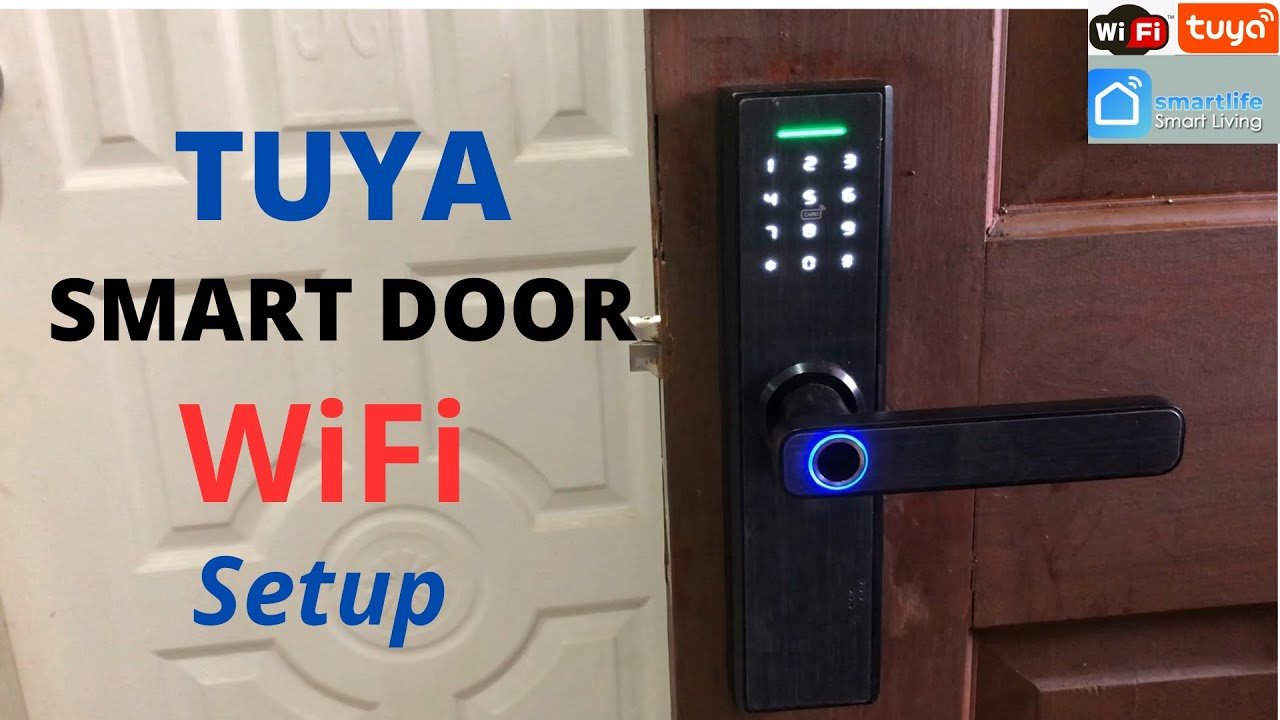
While how to connect smart lock to Wifi is usually a smooth process, connection issues can still happen. Troubleshooting helps you find and fix these problems fast. This section covers common Wifi problems, app and firmware updates, and reset steps. Follow these tips to get your smart lock back online and fully functional.
Common Wifi Problems
Weak signals often cause connection issues. Walls and distance reduce WiFi strength. Make sure your router is close to the lock. Check if other devices can connect to the same WiFi. Sometimes, the network is busy or slow. Restarting the router can clear minor errors.
An incorrect WiFi password is another usual problem. Double-check the password entered in the app. Smart locks usually support only 2.4 GHz Wi-Fi. Confirm your router broadcasts on this frequency. Using 5 GHz alone will cause failure to connect.
App And Firmware Updates
Smart lock apps must be up to date. Older versions may not connect properly. Visit your phone’s app store and update the app. Firmware is the lock’s internal software. Check for firmware updates in the app settings. Updates improve performance and fix bugs that block the WiFi connection.
Keep your phone’s operating system updated too. Compatibility issues can stop the app from working properly. Regular updates reduce the chance of connection errors.
Reset And Reconnect Steps
Resetting the smart lock clears old network info. Hold the reset button as per the manual. After resetting, follow the app instructions to add the lock again. This process helps fix persistent connection failures.
Turn off your phone’s WiFi before reconnecting. Turn it back on and try pairing the lock again. This refreshes the network connection on your phone. If the problem stays, restart your phone and router together.
Enhancing Smart Lock Security
Smart locks offer great convenience but require strong security. Protecting your smart lock from unauthorized access keeps your home safe. Follow simple steps to enhance your smart lock security and enjoy peace of mind.
Setting Strong Passwords
Choose passwords that are hard to guess. Use a mix of letters, numbers, and symbols. Avoid common words or simple patterns like “1234” or “password”. Change passwords regularly to keep them secure. Never share your password with others.
Enabling Two-factor Authentication
Two-factor authentication adds extra security. It asks for a second form of identification besides your password. This could be a code sent to your phone. It stops hackers even if they know your password. Turn on two-factor authentication in your smart lock app settings.
Regular Firmware Updates
Smart lock makers release updates to fix security issues. Updating firmware keeps your device protected against new threats. Check for updates often and install them right away. Enable automatic updates if available. Outdated firmware can make your lock vulnerable.
Integrating With Smart Home Systems
Smart home integration adds convenience and improves security, but it all starts with how to connect smart lock to Wifi. Following the right connection steps allows your lock to talk to other smart devices, enabling you to control access from anywhere and set up automated routines that make your home life smoother and more secure.
Connecting To Voice Assistants
Most smart locks work with popular voice assistants like Alexa, Google Assistant, and Siri. You can lock or unlock the door using simple voice commands. Start by linking your smart lock app to the voice assistant app. Follow the instructions to enable the smart lock skill or action. After setup, say commands like “Lock the front door” to control your lock hands-free.
Using Automation And Scenes
Automation lets your smart lock work with other smart devices automatically. For example, you can set the door to lock when you leave home. Scenes combine multiple actions into a single command. Create a “Good Night” scene that locks doors and turns off lights. Use your smart home app to easily customize these automations and scenes. This makes your home safer and smarter without extra effort.

Credit: support.august.com
Frequently Asked Questions
How Do I Connect My Smart Lock To Wifi?
To connect your smart lock to WiFi, first install its app. Follow in-app instructions to add the lock and enter your WiFi details. Ensure your router uses 2. 4 GHz frequency as many locks don’t support 5 GHz. Confirm the lock is powered on during setup.
Why Is My Smart Lock Not Connecting To Wifi?
Common reasons include a weak WiFi signal, an incorrect password, or an incompatible router frequency. Restart your router and smart lock. Check if your lock supports 2. 4 GHz WiFi. Update the lock’s firmware via its app for better connectivity and security.
Can I Connect Smart Lock Without A Hub?
Yes, many modern smart locks connect directly to WiFi without a hub. They use built-in WiFi modules for direct communication. However, some models still require hubs for extended features. Check your lock’s specifications to confirm if a hub is necessary.
What Wifi Frequency Do Smart Locks Support?
Most smart locks support the 2.4 GHz Wi-Fi frequency. This band offers a better range and penetration through walls. Few smart locks support 5 GHz, which provides faster speeds but a shorter range. Always check your lock’s manual for frequency compatibility before setup.
Conclusion
How to connect smart lock to Wifi is essential for keeping your home safe and smart. Follow each step with care to avoid common mistakes, and be sure to check your WiFi signal strength before starting. Using the app that came with your lock makes setup much easier; once connected, you can control your lock from anywhere on your phone.
Stay updated by keeping your lock’s software current. Enjoy the comfort and security of a smart home. Simple steps lead to a safer, smarter door. Give it a try today!