Are you having trouble with your Google Nest Mini? If it’s not responding or you want to start fresh with new settings, this guide will show you how to reset Google Nest Mini quickly and safely.
Resetting your Google Nest Mini can fix many issues and give you a clean slate. But how exactly do you do it without any hassle? You’ll find simple, step-by-step instructions to quickly and safely reset your device. Keep reading, and you’ll have your Google Nest Mini working perfectly again in no time.
Reset Methods
Resetting your Google Nest Mini can fix many common issues. It helps restore the device to its original settings. Two main ways exist to reset the Nest Mini. You can use the physical button on the device. Or you can reset it through the Google Home app. Both methods are simple and quick to follow.
Using The Physical Button
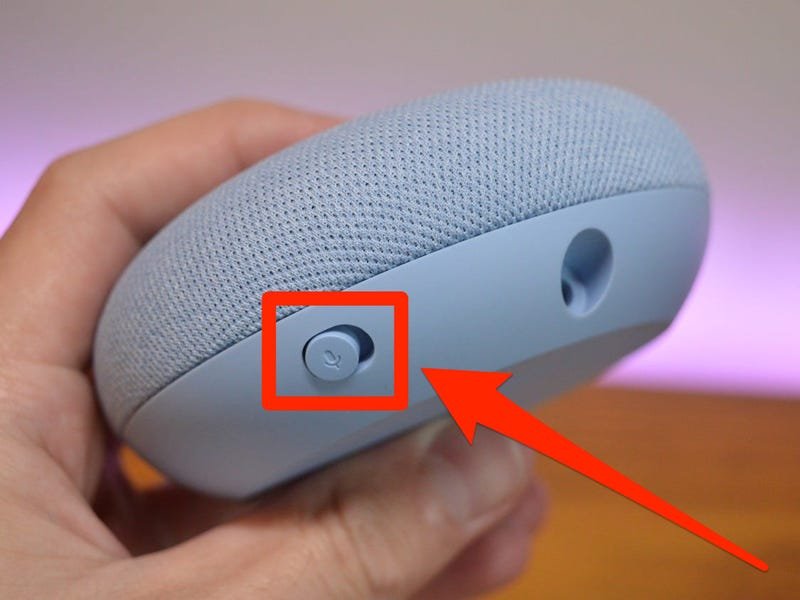
Find the small reset button under the Nest Mini. It is near the power cord. Press and hold the button for about 15 seconds. The device will start the reset process. Wait until the light turns orange. Then the Nest Mini will reboot. This clears all settings and data. Your device is now reset to factory defaults.
Reset Via Google Home App
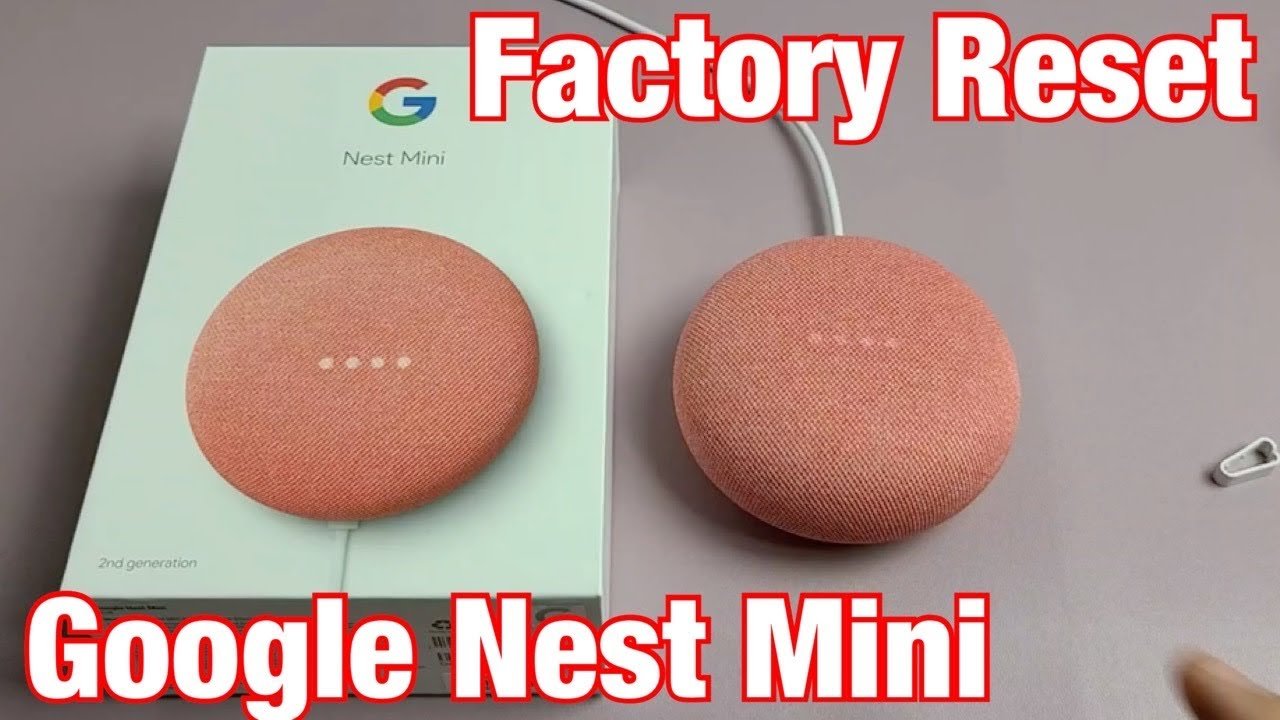
Open the Google Home app on your phone. Select your Nest Mini from the device list. Tap the settings icon to open device options. Scroll down and find the “Factory Reset” option. Tap it, then confirm your choice. The app will send the reset command to the Nest Mini. The device will restart and erase all settings.
Credit: www.youtube.com
When To Reset
Knowing how to reset Google Nest Mini at the right time can save you time and fix many common problems. Resetting clears all settings and data, giving your device a fresh start. This step is useful in several situations, and understanding when to reset helps you decide the best moment to do it.
Troubleshooting Issues
Resetting helps when the Nest Mini acts strangely. It stops responding or does not connect to Wi-Fi. Sometimes it does not respond to voice commands correctly. A reset often fixes these problems quickly. It restores the device to normal working order.
Use reset if the device freezes or restarts often. It can solve software glitches that cause errors. Before resetting, try simple fixes like restarting the device. Reset only if problems continue after these steps.
Preparing For New Setup
Reset the Nest Mini before giving it away or selling. This removes all personal information and settings. It ensures the next user starts fresh. Reset also helps if you want to set it up again from zero.
After a reset, the device acts as new. You can connect it to a different Google account. This is useful if you change homes or want to share it with someone else. Resetting clears old data and makes setup easy.
Step-by-step Reset Guide
Resetting your Google Nest Mini can solve many common problems. This step-by-step guide helps you safely reset the device. Follow each step carefully to avoid any issues. Resetting erases all settings and data on your Nest Mini. Make sure to back up any important information before you start.
Locate The Reset Button
First, find the reset button on your Google Nest Mini. It is a small, circular button on the bottom of the device. Flip your Nest Mini over to see it clearly. You may need good lighting to spot the button easily. Use your finger to feel around the base of the button.
Performing The Reset
Press and hold the reset button for about 15 seconds. Keep holding the button until the lights on top blink orange. The device will speak to confirm that the reset process started. Release the button only after you hear this confirmation. The Nest Mini will automatically turn off and restart.
Confirming The Reset
Wait for the device to complete the reset and reboot. The lights will turn white when the process finishes. Your Nest Mini will now behave like a new device. You need to set it up again using the Google Home app. Check that the device responds to voice commands to confirm success.

Credit: www.wikihow.com
Setting Up After Reset
After learning how to reset Google Nest Mini, setting it up again is essential to enjoy all its features. The reset removes all previous settings, so starting fresh is necessary. This setup process helps your device reconnect to your Wi-Fi network, recognize your voice, and let you customize preferences to match your needs.
Connecting To Wi-fi
First, connect your Nest Mini to Wi-Fi. Open the Google Home app on your phone. Follow the prompts to find your device. Select your Wi-Fi network, then enter the password. Wait a moment while the device connects. A stable internet connection is key for smooth operation.
Configuring Voice Match
Voice Match helps your Nest Mini recognize different voices. This feature personalizes responses. In the Google Home app, select Voice Match setup. Speak the phrases shown on the screen. The device learns your voice patterns. This step improves your smart speaker’s interaction with you.
Customizing Preferences
After connecting and setting up Voice Match, customize your preferences. Choose your default music service and news sources. Set up routines for daily tasks. Adjust volume and notification settings. Personalizing these options makes the device better fit your lifestyle.
Tips For Smooth Setup
Setting up your Google Nest Mini after a reset can be quick and hassle-free. A few simple tips help ensure everything works well from the start. These steps make your experience smooth and enjoyable.
Keep Software Updated
Check that your Google Nest Mini runs the latest software. Updates fix bugs and add new features. To update, connect the device to Wi-Fi and open the Google Home app. Updates usually happen automatically, but manual checks help avoid delays.
Check Network Stability
A strong Wi-Fi signal is key for smooth setup and use. Place your Nest Mini near your router. Avoid walls or objects that block the signal. Restart your router if the connection feels slow or unstable. Stable internet means faster responses and fewer interruptions.
Use Google Home Features
The Google Home app guides you through setup step-by-step. Use it to link your Nest Mini to your Google account. Customize settings like voice recognition and preferred music services. This app makes managing your device simple and clear.
Credit: kdfoundation.org
Frequently Asked Questions
How to Reset Google Nest Mini?
To reset your Google Nest Mini, press and hold the small reset button beneath the device. Hold it for about 15 seconds until you hear a confirmation sound. This will restore factory settings and erase all your data.
Can I Reset Google Nest Mini Without The App?
Yes, you can reset the Nest Mini manually by pressing the reset button under the device. No app is needed for this process, making it quick and easy.
What Happens After Resetting Google Nest Mini?
Resetting deletes all your settings, accounts, and preferences. Your device returns to factory defaults, requiring setup as new. This helps fix persistent issues or prepares the device for a new user.
How Long Does A Google Nest Mini Reset Take?
Resetting your Nest Mini usually takes about 15 seconds when you hold the reset button. After releasing, it may take a few minutes to reboot and be ready for setup.
Conclusion
Resetting your Google Nest Mini is simple and quick when you know the right steps. This guide explains how to reset Google Nest Mini safely to fix common issues and prepare it for a fresh setup. Before resetting, remember to back up any important settings. Once the reset is complete, your Nest Mini will feel like new and ready to use again.
Enjoy smoother performance and better responses. Keep this guide handy for future use. Your smart speaker will work well again. Easy fixes save time and frustration. Try the reset when your device acts strangely.