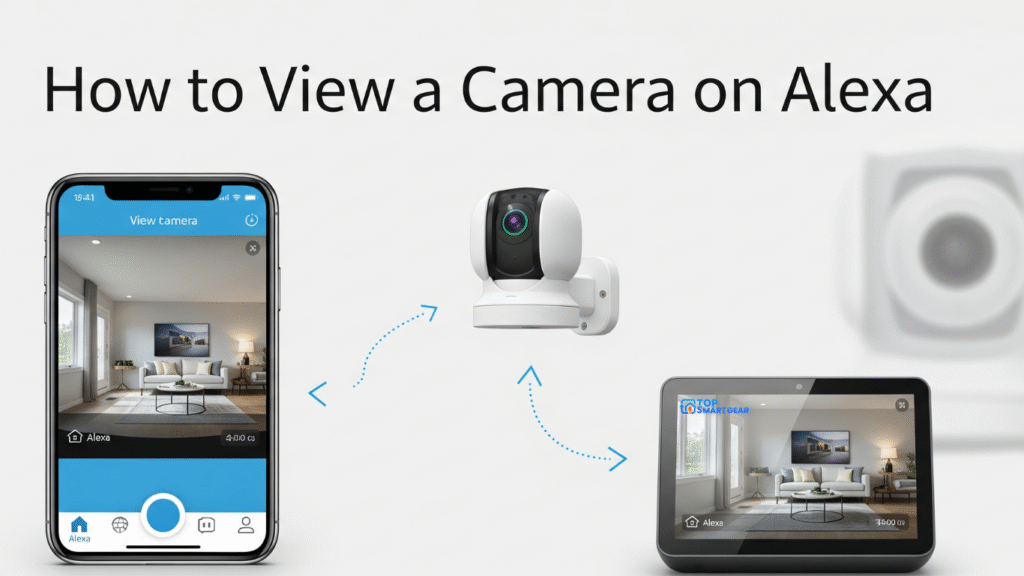
How to View Camera on Alexa: Easily monitor your home by connecting your smart security camera to Alexa. With simple voice commands like “Alexa, show [Camera Name],” you can view live footage on Echo Show or Fire TV devices. This hands-free access makes home security more convenient, letting Alexa become your reliable visual monitoring tool.
Imagine asking Alexa to show you the front door or the baby’s room, and instantly getting a live view on your Echo Show or Fire TV. If you want to know exactly how to set this up and use it smoothly, keep reading—this guide will walk you through every step so you never miss a moment.
Setup Requirements
Setting up your camera to view on Alexa requires a few important steps. These ensure smooth operation and clear video streaming. Knowing the setup requirements saves time and avoids frustration. Below are key elements you need before you start.
Compatible Cameras
Not all cameras work with Alexa. Choose a camera that supports Alexa integration. Popular brands include Ring, Arlo, Nest, and Wyze. Check the camera’s packaging or product page for Alexa support. Compatibility ensures Alexa can access and display your camera’s video feed.
Alexa Devices Needed
You need an Alexa-enabled device with a screen. Examples include Echo Show, Echo Spot, or Fire TV. These devices show live video from your camera. Alexa speakers without screens cannot display video but can provide alerts.
Network And App Setup
A stable Wi-Fi network is essential. Connect both the camera and the Alexa device to the same network. Download the camera’s official app on your smartphone. Use the app to complete the camera setup and link it to Alexa. This connection allows Alexa to access your camera feed securely.
Connecting Camera To Alexa
Connecting your camera to Alexa lets you see the video feed on your Echo Show or Fire TV. The setup is simple and fast. Follow the steps carefully to link your camera with Alexa.
Enable Camera Skill
Open the Alexa app on your phone. Tap the menu and select “Skills & Games.” Search for your camera brand’s skill. Tap “Enable” to activate it. This allows Alexa to work with your camera.
Link Camera Account
After enabling the skill, you must link your camera account. Enter your camera login details in the Alexa app. This connects your camera to Alexa securely. Without linking, Alexa cannot access your camera feed.
Discover Devices
Next, ask Alexa to discover new devices or use the “Add Device” option in the app. Alexa will scan and find your camera. Once found, your camera is ready to use with Alexa commands.
Viewing Camera Feed
Viewing your camera feed on Alexa is simple and fast. It helps you check your home or office anytime. You can see live video right on your Alexa device. This section explains how to view the camera feed in three easy ways.
Using Voice Commands
Speak directly to your Alexa device to see the camera feed. Say, “Alexa, show [camera name].” Alexa will display the live video instantly. No need to open any app or press buttons. This method is quick and hands-free. It works with most smart cameras linked to Alexa.
Using Alexa App
Open the Alexa app on your smartphone or tablet. Tap the “Devices” tab at the bottom. Select “Cameras” to find your connected devices. Tap the camera you want to view. The live feed will appear on your screen. This way lets you watch your cameras from anywhere.
Viewing On Echo Show
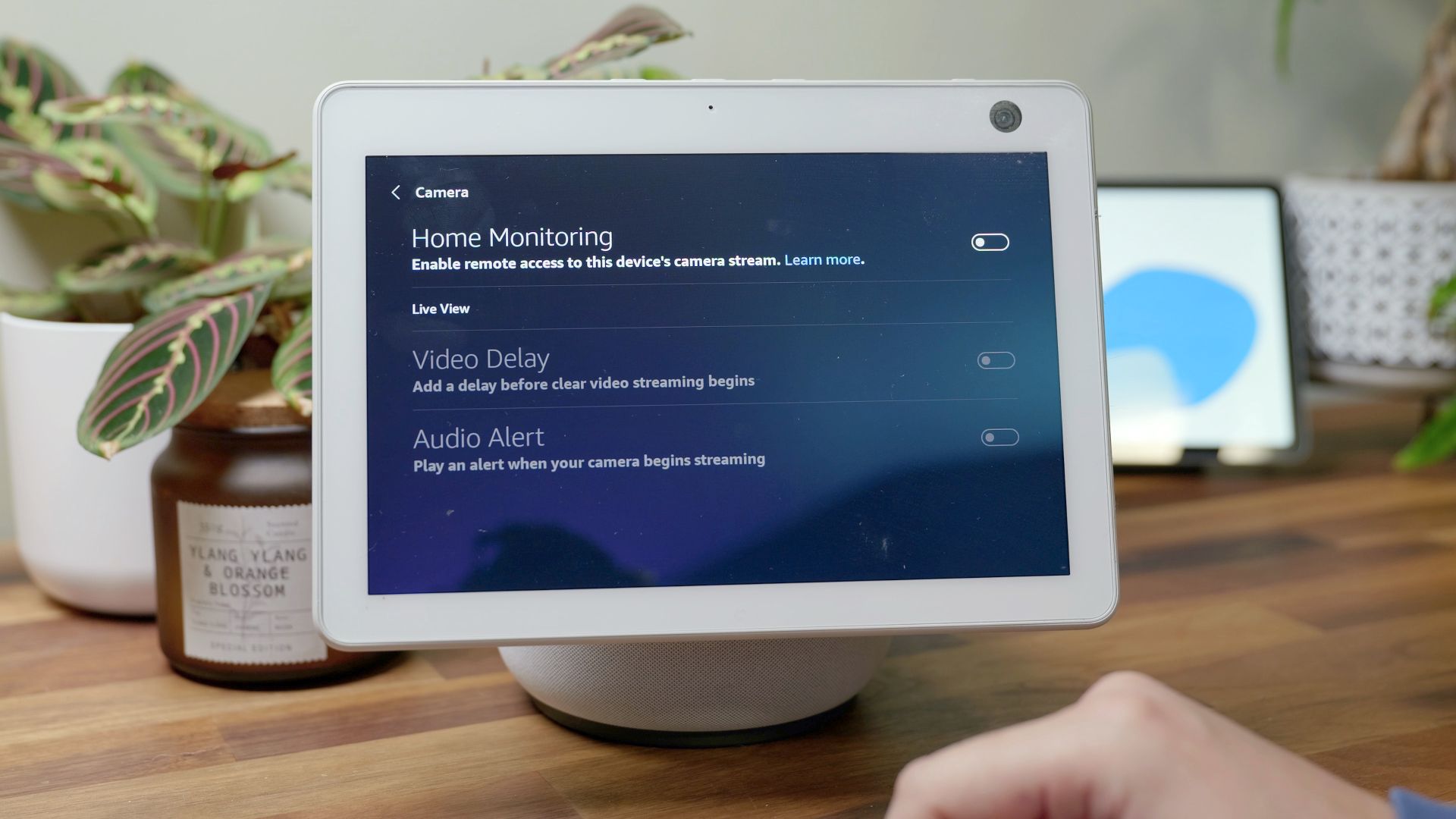
The Echo Show has a built-in screen for camera feeds. Say, “Alexa, show the front door camera.” Or swipe on the screen to find your camera under the “Cameras” section. The video plays right on the device. It’s perfect for quick checks without using your phone.
Credit: www.pocket-lint.com
Troubleshooting Tips
Sometimes, your camera may not show properly on Alexa. This section helps fix common issues fast. Follow these simple steps to get your camera working again. Troubleshooting is easy with clear instructions.
Connection Issues
Check your Wi-Fi connection first. Make sure your camera and Alexa device use the same network. Restart your router if the connection is weak. Move devices closer to the router to improve signal strength. Update your camera and Alexa app to the latest version. This often solves connection problems.
Camera Not Showing
Confirm your camera is linked to the Alexa app. Remove and add the camera again if it does not show. Check the camera’s power supply to ensure it is on. Restart both the camera and your Alexa device. Clear the app cache to remove any temporary glitches. Sometimes, a simple reset fixes the display issue.
Audio And Video Problems
Test the camera’s microphone and speaker settings. Adjust volume levels on both the camera and Alexa device. Restart the camera to clear any audio or video glitches. Check for obstructions blocking the camera lens. Clean the lens gently for a clearer view. Update firmware to fix bugs that affect sound and picture.
Enhancing Camera Experience
Enhancing your camera experience on Alexa makes your smart home safer and more convenient. Small settings changes improve how you see and respond to your camera feeds. These tips help you get alerts, automate actions, and protect your privacy with ease.
Setting Up Notifications
Turn on notifications to get alerts on your phone or Echo devices. Receive updates when motion is detected or when someone rings the doorbell. Customize alerts for specific times or activity types. This way, you stay informed without constant checking.
Using Routines With Camera
Create routines to automate tasks based on camera activity. For example, turn on the lights when motion is seen at night. Use Alexa to announce visitors or start recording automatically. Routines save time and add smart control to your daily life.
Privacy Settings
Adjust privacy settings to control camera access and data sharing. Disable video streaming when you want privacy. Manage who can view live feeds or recorded clips. These settings protect your home and give you peace of mind.
:max_bytes(150000):strip_icc()/LiveView-71076b6d79f742b985751dea50852bad.jpg)
Credit: kdfoundation.org
Frequently Asked Questions
How Do I Connect My Camera To Alexa?
To connect your camera, open the Alexa app and enable the camera’s skill. Link your account and discover devices. Alexa will sync and let you view the camera feed on compatible Echo devices.
Which Cameras Work With Alexa Devices?
Most popular brands like Ring, Arlo, Nest, and Wyze support Alexa integration. Ensure your camera supports Alexa skills for seamless viewing and control through Echo devices.
How Can I View My Camera On An Echo Show?
Say, “Alexa, show my [camera name],” on your Echo Show. The live video feed will display on the screen instantly if your camera is properly linked.
Can I View Multiple Cameras On Alexa Simultaneously?
Yes, you can create groups or ask Alexa to show specific cameras one by one. However, simultaneous multi-camera viewing depends on your device’s capabilities.
Conclusion
How to View Camera on Alexa: Connecting your security camera to Alexa is quick and easy. Once linked, you can use voice commands like “Alexa, show the front door” to check live footage instantly. Alexa works with many top camera brands, making home monitoring hands-free and convenient. Stay secure and in control with just your voice.
Enjoy the convenience of smart home monitoring today.