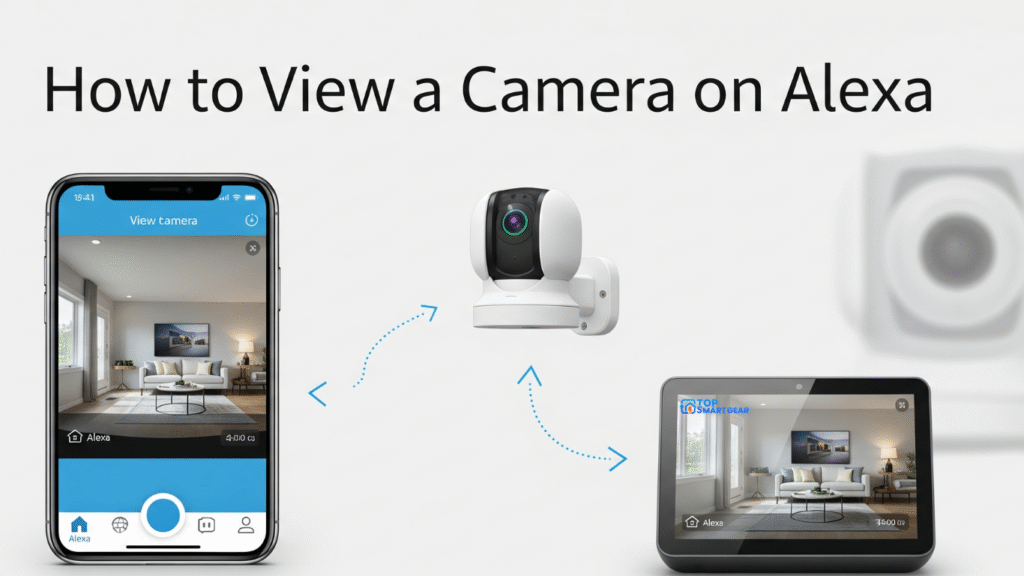
Quick answer on camera on Alexa: link your camera brand to Alexa (Ring and Blink link automatically through your Amazon account; most others need their skill), say “Alexa, discover devices,” then say “Alexa, show [camera name]” to an Echo Show or Fire TV. To stop, say “Alexa, hide [camera name]” or “Alexa, go home.”
How we put this guide together: written by Paban Bhuyan for TopSmartGear, based on Amazon’s Alexa help pages and camera makers’ setup instructions. This is a research-based guide, not a hands-on test. Sources include Ring’s official plans page. Read how we review.
What you need
- A camera that works with Alexa (Ring, Blink, eufy, Wyze, Reolink, Tapo, Arlo, Google Nest and many others).
- A screen to watch on: an Echo Show, a Fire TV device or Fire TV smart TV, or the Alexa app on your phone (supported cameras). A regular Echo speaker can’t show video.
- The Alexa app, signed in to the same Amazon account as your Echo.
Step 1: Set up the camera in its own app
Install and name the camera in the maker’s app first (for example “Front Door” or “Living Room”), and check live view works there.
Step 2: Link the camera to Alexa
- Open the Alexa app and tap More → Skills & Games.
- Search for your camera brand and tap Enable to Use.
- Sign in to your camera account to link it.
- Say “Alexa, discover devices,” or tap Discover in the app.
Ring and Blink are Amazon brands, so they may already appear in the Alexa app’s Devices → Cameras section once your accounts are linked.
Step 3: Watch the camera
- Echo Show or Fire TV: say “Alexa, show Front Door.” Use the camera’s exact name from the Alexa app.
- Alexa app: open Devices → Cameras and tap the camera.
- Doorbells: many doorbells can pop up automatically on an Echo Show when someone rings. Turn this on in the doorbell’s settings in the Alexa app.
If your camera won’t show
- “Device isn’t responding”: check the camera is online in its own app, then disable and re-enable the skill.
- Wrong camera name: rename it in the Alexa app to something short and unique.
- Battery cameras: live view can take a few seconds to wake the camera; some brands limit live view length to save battery.
- Still stuck: see our Alexa troubleshooting guide.
Frequently asked questions
Do I need a subscription to view cameras on Alexa?
Live view on Alexa usually works without a plan. Saving and replaying recordings depends on the camera brand; see our guide to cameras without a subscription.
Can I talk through the camera from an Echo Show?
Many cameras and doorbells support two-way talk through an Echo Show; tap the microphone button on screen while viewing.